
Introduction
Android smartphones have evolved far beyond simple touch controls. Modern devices come packed with gesture-based navigation that makes using your phone faster, smoother, and more intuitive. By mastering these gestures, you can cut down on taps, streamline multitasking, and unlock hidden shortcuts that many users overlook.
Why Gestures Matter
Gestures replace traditional navigation buttons with fluid swipes and taps. They free up screen space, reduce clutter, and make interactions feel natural. Once you get used to them, gestures can significantly boost your speed and efficiency.
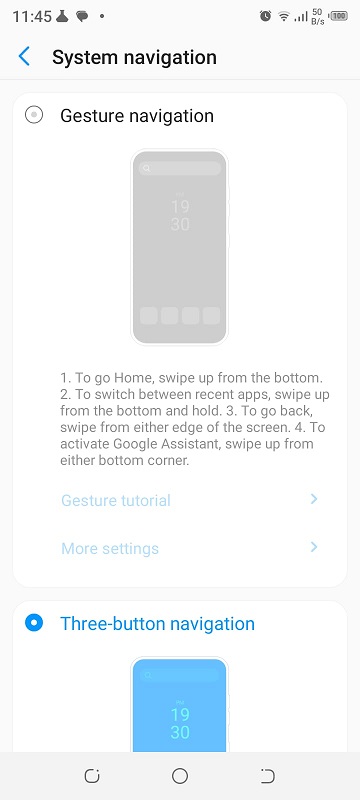
On most Android devices, gesture navigation is not enabled by default. You usually need to activate it manually in your phone’s settings. To enable gestures,
go to Settings > System > Gestures or Settings > Display > Navigation bar
Depending on your device and Android version. Once enabled, the traditional navigation buttons will be replaced by gesture controls.
Essential Android Gestures
1. Home Gesture
How it works: Swipe up from the bottom of the screen.
Why it’s useful: Instantly returns you to the home screen without searching for a button.
2. Back Gesture
How it works: Swipe inward from either the left or right edge.
Why it’s useful: Quickly go back one step in apps or menus, saving time.
3. App Switcher Gesture
How it works: Swipe up from the bottom and hold.
Why it’s useful: Opens recent apps, letting you jump between tasks seamlessly.
4. Quick App Switching
How it works: Swipe left or right along the bottom edge.
Why it’s useful: Switch instantly between your two most recent apps.
5. Notification Access
How it works: Swipe down on the fingerprint sensor (if supported).
Why it’s useful: Opens notifications without stretching your thumb to the top of the screen.
6. Split-Screen Gesture
How it works: Open recent apps, then drag one app to the top of the screen.
Why it’s useful: Run two apps side by side for multitasking.
Advanced Gesture Tricks
One-Handed Mode
Swipe down on the navigation bar or use a shortcut to shrink the screen.
Perfect for large phones, making them easier to use with one hand.
Gesture Customization
Many Android skins (Samsung One UI, MIUI, OxygenOS) allow you to tweak gestures.
You can assign custom actions like launching the camera or activating Google Assistant.
Hidden Gestures
Double-tap to wake the screen.
Three-finger swipe to take a screenshot.
Pinch-in gesture to access hidden menus on some devices.
Tips for Mastering Gestures
Practice regularly: It takes a few days to build muscle memory.
Customize settings: Explore your phone’s gesture options in Settings.
Combine gestures: Use quick app switching with split-screen for maximum productivity.
You may also be interested in reading these articles:
5 Awesome Android tips and tricks
Android Tip: Get Something Surprising But Funny
Android Tip: Launch App Drawer or Launcher Menu
Wi-Fi Trick: Find Lost Wi-Fi Password
3 Spectacular Stress-Relief Android Apps to Keep You Mentally Atop