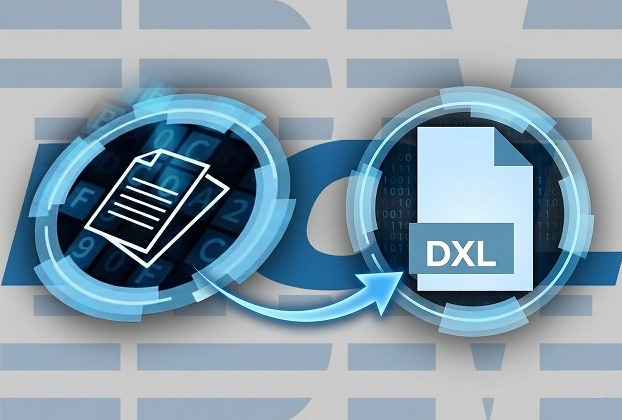
The HCL Notes (formerly IBM Notes) platform has been powering enterprise messaging, workflow automation, and secure collaboration for decades. With millions of enterprise users worldwide and a deeply programmable architecture, Notes/Domino remains one of the most customizable business application platforms available. Among its most powerful — yet often underused — features is DXL (Domino XML Language), a structured XML representation of Notes design elements and documents. When combined with LotusScript, DXL becomes a powerful mechanism for document cloning, migration, transformation, backup, and integration.
This article walks you through a simple but pretty handy way of exporting a Notes document to DXL and importing it back into a database, explaining how it works, where it can be used, architectural considerations, and potential risks.
Understanding DXL in HCL Notes
DXL (Domino XML Language) is an XML-based representation of Notes data and design. It allows:
- Exporting documents in structured XML form
- Recreating documents programmatically
- Migrating data between databases
- Transforming content outside Notes
- Version controlling document structure
Unlike traditional copy-paste or replication, DXL gives you low-level structural access to a document — including items, flags, embedded images, metadata, and UNIDs.
Exporting a Notes Document to DXL Using LotusScript
The following LotusScript procedure exports the currently opened Notes document into a DXL file.
Sub ExportDocToDxl()

    Dim session As New NotesSession
    Dim ws As New NotesUIWorkspace
    Dim uidoc As NotesUIDocument
    Dim doc As NotesDocument
    Dim exporter As NotesDXLExporter

    Set uidoc = ws.CurrentDocument

    If uidoc Is Nothing Then
        Messagebox "No document selected."
        Exit Sub
    End If

    Set doc = uidoc.Document
    Set exporter = session.CreateDXLExporter()

    exporter.OutputDOCTYPE = False
    exporter.ConvertNotesBitmapsToGIF = True

    Dim dxl As String
    dxl = exporter.Export(doc)

    Dim fileNum As Integer
    fileNum = Freefile

    Open "D:\Temp\SelectedDoc.dxl" For Output As fileNum
    Print #fileNum, dxl
    Close fileNum

    Messagebox "The selected document is successfully exported to DXL file."
End Sub
How It Works
The NotesDXLExporter converts a NotesDocument object into XML format. The generated DXL string is then written to disk as SelectedDoc.dxl.
Two important properties are configured:
OutputDOCTYPE = Falseavoids writing the DOCTYPE declaration.ConvertNotesBitmapsToGIF = Trueensures embedded Notes bitmaps are converted into a web-friendly format.
The result is a fully structured XML representation of the selected document.
Importing a DXL File Back into a Notes Database
Now let’s look at the reverse process.
Sub ImportDxlToDoc()

    Dim session As New NotesSession
    Dim db As NotesDatabase
    Set db = session.CurrentDatabase

    Dim stream As NotesStream
    Set stream = session.CreateStream

    If Not stream.Open("D:\Temp\SelectedDoc.dxl") Then
        Messagebox "Cannot open DXL file."
        Exit Sub
    End If

    Dim importer As NotesDXLImporter
    Set importer = session.CreateDXLImporter()

    importer.ReplaceDbProperties = False
    importer.ReplicaRequiredForReplaceOrUpdate = False

    Call importer.Import(stream, db)

    Messagebox "DXL imported successfully."

End Sub
The NotesDXLImporter reads the XML from disk using a NotesStream and recreates the document inside the current database.
By default:
- The importer creates a new document.
- It does not replace existing documents unless
DocumentImportOptionis explicitly configured.
This behavior is important in avoiding accidental overwrites.
Where Can This Code Be Invoked?
These procedures can be called from multiple contexts:
- An action button on an opened Notes document.
- A button on a View.
- A scheduled or manual Notes agent.
- A background automation agent.
However, slight adjustments may be necessary depending on the context.
For example, if invoked from a view action or an agent processing multiple documents, you may not have access to NotesUIDocument. In that case, you would work directly with NotesDocument objects retrieved from a view or search.
UI-dependent code must be removed for backend-only agents.
Real-World Scenarios for Using DXL Export and Import
DXL-based automation is particularly useful in scenarios such as:
Document cloning and templating systems where a base document structure needs duplication with modifications.
Cross-database migration where documents must be transferred between unrelated NSF files.
Field-level transformation, where DXL is manipulated externally before re-importing.
Version comparison and structural inspection of documents.
Disaster recovery or selective backup of high-value documents.
Integration with external XML-processing systems.
Embedded images extraction from the document to store in a specific directory or to another database system.
For developers building complex workflow systems, DXL can function as a serialization layer for document state management.
Replace vs Create — Critical Behavior
If you want to replace existing documents during import, you must explicitly set:
importer.DocumentImportOption = DXLIMPORTOPTION_REPLACE_ELSE_CREATE
Otherwise, the importer creates new documents even if a matching UNID exists.
This distinction is essential in production systems to prevent duplication or unintended overwrites.
Security and Risk Considerations
Although powerful, DXL import/export carries potential risks.
First, DXL exposes internal document structure. If exported files are stored insecurely, sensitive data may be exposed in readable XML format. Always store DXL files in secured directories with restricted access.
Second, importing modified DXL files can alter protected fields, Readers/Authors fields, or metadata. If users can manipulate DXL externally, this can bypass intended UI-level validations. Validation should be enforced through server-side logic.
Third, mass import operations can cause document duplication if DocumentImportOption is not carefully configured.
Fourth, importing into production databases without testing can introduce schema mismatches or form inconsistencies.
DXL export and import via LotusScript unlocks a powerful layer of automation within the HCL Notes ecosystem. It allows deep structural control over Notes documents that replication and standard APIs cannot provide. Used carefully, DXL is one of the most potent features in the Notes/Domino development toolkit. Used carelessly, it can introduce duplication, overwrites, or security exposure.
As always in enterprise systems — power demands discipline.
You may also be interested in reading these articles:
HCL Notes Trick: Retrieve Details Rows From Embedded View
HCL Notes Trick – GetAllDocumentsBy2Keys
The Power Of IBM Notes Formula Language
IBM Notes Technique – Filter the Documents on the last 15 working days.