If you’ve been running HCL Notes environments for any length of time, you know the drill: ID files, password resets, shared login workarounds for kiosk machines, and the occasional 2 a.m. call because someone’s password expired mid-shift. It’s been the same basic authentication model for three decades.
Fix Pack 1 for Notes/Domino 2026 (14.5.1) quietly changed that. For the first time, the Notes client itself supports OpenID Connect (OIDC) as an authentication method — not just the web tier, not just Nomad, but the actual thick client sitting on your users’ desktops.
I covered what shipped in FP1 in my last post. This one is the part admins actually search for next: how do you take this from a documentation page to a working pilot without breaking anything for the users who aren’t in scope yet?
This isn’t a theoretical walkthrough assembled from a changelog. It’s the sequence I’d actually follow on a real server: confirm versions, get the Internet Site and ID Vault groundwork right, register the OAuth client, wire up the Security Policy, pilot it on a handful of real accounts, and only then think about wider rollout. Skip any one of those steps and you’ll spend an afternoon chasing confusing login loops or failures that trace back to something five minutes of prep would have caught.
Why This Is Worth the Effort
Password-based Notes ID authentication has aged in a specific way: it’s not that it’s insecure by design, it’s that it’s increasingly the odd one out in an environment where everything else — email, VPN, internal web apps — has already moved to OAuth/OIDC-based flows with conditional access, MFA, and centralized session policies. Every password-only system left in an otherwise modernized identity environment is both a support burden and a slightly weaker link in the chain. OIDC support in the Notes client doesn’t close that gap entirely (more on that limitation below), but it moves the client onto the same authentication grammar as the rest of your stack, and that has real value even before you get to full external SSO.
What OIDC Actually Replaces — and What It Doesn’t
Before touching a single configuration document, it’s worth being precise about what’s changing, because there are three distinct OIDC-related scenarios in Domino and it’s easy to read about one and assume it applies to all of them. This isn’t an official HCL classification — it’s just a useful way to keep the three apart while you plan.
Three OIDC-Related Scenarios You Should Distinguish
- Web login with OIDC — browser clients hitting a Domino web server authenticate against an OIDC Provider and get a session cookie. This has existed since Domino 12.0.2 and was refined further in 14.0.
- Nomad federated login — Nomad web and mobile clients authenticate through Domino acting as the OIDC Provider, skipping the Notes ID/password prompt entirely.
- Notes client OIDC (new in 14.5.1) — the Notes Standard client can now authenticate via OIDC instead of the traditional ID file password challenge.
This guide is about the third one — one of the newer and more easily misunderstood OIDC capabilities in the Notes/Domino stack, and the one your users will actually notice.
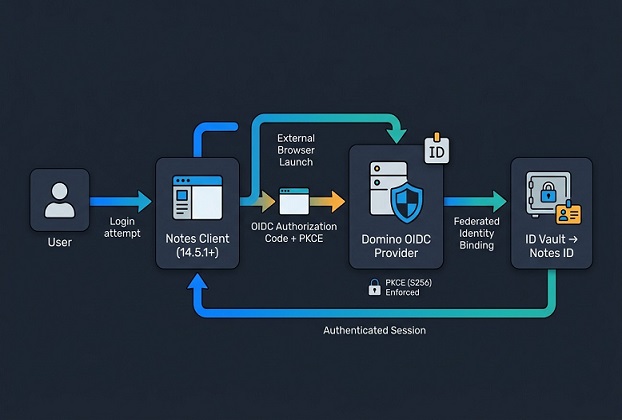
The relationship between the three matters more than the labels do. For Notes client OIDC specifically, the chain looks like this:
                 Notes Client
              (Standard, 14.5.1+)
                       |
                       | OIDC Authorization Code + PKCE
                       v
              Domino OIDC Provider
                       |
                       | authentication
                       v
        Configured Domino authentication
         mechanism / identity source
                       |
                       v
              ID Vault  --  Notes ID
The two links most walkthroughs gloss over are the ID Vault step and the fact that “Domino as OIDC Provider” doesn’t necessarily mean “Domino Directory password as the ultimate identity source” — Domino’s OIDC provider can sit in front of whatever authentication mechanism is already configured on the Domino HTTP side, including passkeys, TOTP, custom login forms, or an external identity provider federated in at that layer. Keep that distinction in mind as you read the rest of this.
The One Constraint That Trips Everyone Up
Here’s the detail that most quick-take articles are going to miss, and it matters for how you plan the rollout: OIDC for the Notes client is only supported when Domino itself is the OIDC Provider. You cannot point the Notes client directly at Azure Entra ID, Okta, or Keycloak as the identity source for client authentication.
That doesn’t mean external identity providers are locked out of the picture entirely — Domino’s REST API and Digital Experience integrations do support federating out to an external OIDC provider through separate configuration paths. But for the Notes client specifically, Domino has to sit in the Provider role. If your organization’s end goal is “single sign-on against our corporate Entra tenant for the Notes client,” FP1 doesn’t get you there yet. Domino must be the OIDC Provider for this flow — that doesn’t automatically mean Domino’s own password database has to be the ultimate source of the user’s credentials, but at the protocol level, the Notes client is talking to Domino, not directly to your corporate IdP.
Plan your pitch to management accordingly — “eliminates password prompts and strengthens the login flow with PKCE-enforced OAuth” is accurate. “Full SSO with our Entra tenant” is not, at least not yet at the Notes client layer.
OIDC vs. SAML: Pick One
A Security Policy document can enable OIDC or SAML for Federated Login, but not both at the same time. If any part of your organization has SAML rolled out already for other Domino authentication flows, factor that into which OU you pilot OIDC in first — you don’t want to be untangling a policy conflict in the middle of a rollout.
Prerequisites Before You Start
Get these confirmed before you open a single configuration document:
- Domino server on 14.5.1 (FP1) or later
- Notes Standard client on 14.5.1 on every machine included in the pilot scope — Notes Basic client is not supported for this configuration
- A valid Internet Site document for the target server, with a working TLS certificate registered in certstore.nsf
- The Internet Site configured for the authentication required by the Domino OIDC Provider, including Bearer Token (JWT) authentication where required for Notes Federated Login and ID Vault integration — it’s an easy thing to get wrong if the site was originally set up for basic web serving only
- The ID Vault approved to trust the OIDC provider for federated login — this is its own configuration surface, separate from the Internet Site and idpcat.nsf work, and it’s the piece most walkthroughs (this one included, in an earlier draft) skip
- idpcat.nsf accessible and ready to be populated with a new OAuth client registration
- A decision on pilot scope — I’d strongly recommend one OU or a small pilot group rather than an org-wide policy push on a feature this new
One documentation trap worth flagging here: if you’re referencing older blog posts or forum threads about Domino OIDC, check the version they’re written against. Client ID and Client Secret used to live in the OIDC_LOGIN_CLIENT_ID and OIDC_LOGIN_CLIENT_SECRET notes.ini variables. Those were removed starting in Domino 14 — the values now live in fields inside idpcat.nsf. Following a pre-14 guide will send you looking for notes.ini settings that no longer exist.
It’s also worth taking an honest inventory of your certificate situation before you start. A surprising number of OIDC pilots stall not on the OIDC configuration itself but on a TLS certificate that’s expired, self-signed, or not fully chained. Since the entire flow depends on the client trusting the redirect back from the Internet Site, treat certificate hygiene as part of the OIDC prerequisite list, not a separate housekeeping task you’ll get to later.
One more thing worth setting expectations on: the Notes client authenticates by launching an external browser for the OIDC flow, rather than showing the traditional Notes password dialog. Mention that to your pilot users up front — see the “Communicating the Change” section below.
Step-by-Step Migration Walkthrough
Step 1: Verify Your Versions
Confirm the server build is 14.5.1 (FP1) or later and that pilot machines are running the Notes Standard client at 14.5.1. Mismatched versions, or a Notes Basic client in the mix, are among the more common reasons a “why doesn’t this work” ticket turns out to be a five-minute answer.
Step 2: Prepare the Internet Site Document
Open the Internet Site document for the server that will act as your OIDC Provider. Check:
- TLS certificate is valid and trusted (self-signed certs will cause more grief than they’re worth here — use a properly chained cert if you can)
- The authentication settings required for the Domino OIDC Provider are enabled, including Bearer Token (JWT) authentication where the OIDC and ID Vault federated-login flow depends on it
- The site’s host name matches what you’ll register as the issuer and redirect URI base later
Step 3: Configure the ID Vault for OIDC Federated Login
This is the step that’s easiest to skip and the one most likely to leave you with a correctly configured OIDC Provider and OAuth client that still doesn’t produce a working Notes client login. Before you touch idpcat.nsf, the ID Vault needs to be configured for federated login with OIDC — the vault administrator approves the OIDC provider, and the vault configuration carries a Bearer token (JWT) approved OIDC provider setting.
Think of it this way: the Notes client authenticates against the Domino OIDC Provider, but it’s the ID Vault that ultimately ties that authentication back to the user’s Notes ID. Get the OIDC Provider and OAuth client right without this step and you’ll have a login flow that appears to succeed in the browser but never actually completes federated login for the Notes client.
Step 4: Create the Trusted OIDC Provider Entry
With the ID Vault configured to trust the provider, the next piece is a Trusted OIDC Provider configuration for the Notes client. This is a distinct object from the OAuth client registration you’ll create in the next step: the Trusted OIDC Provider entry tells the Notes client which Domino OIDC Provider it’s allowed to authenticate against, while the OAuth client registration (Step 5) tells Domino which client is allowed to request tokens from it. Both need to exist and agree with each other before the Security Policy step will actually work end to end.
Step 5: Register the Notes Client as an OAuth Client in idpcat.nsf
This is where you create the OAuth client registration:
- Set the Client ID and Client Secret fields directly in idpcat.nsf (not notes.ini)
- Configure the Allowed Client IDs (audience) for the application
- Set the redirect URI. For the Notes client specifically, HCL’s 14.5.1 documentation specifies:
notes://callback/oidc/nflhttp://127.0.0.1/notesoidc
These are Notes-client redirect URIs — don’t confuse them with the redirect pattern used for Web Login with OIDC, which is a separate configuration surface with its own redirect URI convention. Mixing the two across different configuration touchpoints is a common source of confusing login loops.
- Advanced, optional: private_key_jwt is supported by Domino’s OAuth/OIDC infrastructure generally, but treat it as an advanced option here rather than a routine alternative for Notes client registration — confirm it applies to this specific flow before using it. Where it’s documented for OAuth client registration, the private-key JWT option uses a PEM- or JWK-encoded public key; that’s a different mechanism from the client-secret field itself. Most pilots are fine sticking with client secret to start.
Step 6: Understand the Authorization Code Flow + PKCE Requirement
For this OIDC login flow, the Authorization Code Flow with PKCE is used, and PKCE S256 plus nonce enforcement is not configurable — you can’t turn it off. From a security standpoint this is a good thing: it closes off the weaker implicit-flow and plain-PKCE patterns that have caused real-world OAuth vulnerabilities elsewhere. From a troubleshooting standpoint, it means you shouldn’t waste time looking for a setting to relax it if something’s failing — the fix is almost always in your redirect URI, Trusted OIDC Provider entry, or client registration, not the flow type.
Step 7: Update the Security Policy Document
In the Security Policy document for your pilot OU:
- Enable Federated Login
- Select OIDC as the provider type (remember — this is exclusive with SAML on the same policy)
- Point the policy at the OIDC Provider and Trusted OIDC Provider configuration you set up in Steps 2 through 5
Step 8: Scope the Policy to a Pilot Group
Apply the updated policy to a single OU or a small explicit group first. Don’t push this org-wide on the first attempt — this is a genuinely new capability in the Notes client, and you want a small, well-communicated pilot group absorbing any rough edges before wider rollout.
When picking pilot users, resist the temptation to hand-pick only your most technical staff. That gives you a clean pilot but a misleading one — technical users route around confusing login screens without reporting them. Include at least one or two ordinary end users who’ll actually tell you, in plain terms, if the new login prompt is confusing or slow. That feedback is worth more than a week of your own testing.
Step 9: Test With One User Before Anyone Else
Pick one pilot user, apply the policy, and walk through the actual login experience yourself if you can. You’re looking for:
- Does the client launch an external browser for the OIDC login prompt, instead of the traditional Notes password dialog?
- Does the Notes client complete the OIDC authentication flow and then operate normally afterward, without prompting for the Notes ID password?
- Does the session persist for the expected duration without unnecessary reauthentication?
Back-channel logout is part of Domino’s OIDC infrastructure and is worth testing at some point, but I wouldn’t treat it as a core pass/fail criterion for this first single-user test — the Notes client flow isn’t equivalent to a browser session, and logout behavior is worth its own dedicated check once basic login is confirmed working.
Step 10: Developer Bonus — Pulling OIDC Tokens Programmatically
If you write LotusScript or Java agents that call out to other services, Domino Designer 14.5.1 added new methods worth knowing about, used to acquire an access token directly from the Domino OIDC Provider on behalf of the current user — whose identity is established by that user’s Notes ID.
Practically, this means an agent can request a token for the currently authenticated user rather than relying on you to manage a separate credential. Whether that actually eliminates the need for a service-account credential in your case depends on what the downstream service does with the token — if it accepts the OIDC token and authorizes the current user accordingly, you can often skip a separate user-facing credential; if it expects its own service identity regardless, you’ll still need that. Either way, if you’re building anything that talks to Domino REST API or another OIDC-aware service from inside a Notes application, this is the piece that closes the loop.
The documented signatures are:
LotusScript:
token$ = session.GetOIDCAccessToken(server$, clientid$, issuer$, resource$, scope$)Java:
public String getOIDCAccessToken(
    server,
    clientid,
    issuer,
    resource,
    scopes
);
Confirm the exact parameter types and behavior against your 14.5.1 Designer help before shipping anything to production — but the capability itself, and the signature above, are documented and worth planning around if you maintain custom Notes applications with external integrations.
Step 11: Turn On Logging and Verify
Before you trust the pilot, verify it’s actually behaving the way you think. For Domino-side OIDC troubleshooting, HCL documents DEBUG_OIDCLogin and related tracing variables in notes.ini — enable tracing only while you’re actively diagnosing a problem, and turn it back off afterward.
A caution worth flagging explicitly: HCL documents OIDC_LOGIN_CLOCK_SKEW_SEC and OIDC_LOGIN_COOKIE_DURATION_SEC in the context of Web Login with OIDC — the cookie-duration setting, for example, controls the lifetime of cookies used to maintain OIDC authentication-state during the web login flow. That’s not the same thing as Notes client session duration, and I wouldn’t reach for these as tuning levers for the Notes client experience unless you’ve separately confirmed they apply to that flow in your version. Treat them as leads for server-side/web-login troubleshooting rather than settings to tune here.
Step 12: Have a Rollback Path Ready
Because Federated Login is set per-policy, rolling back a pilot group means reverting the Security Policy document to its prior federated-login configuration and allowing the change to propagate — it doesn’t touch users outside that policy’s scope. Confirm the propagation timing in a test OU before you rely on this operationally, but structurally, this is a low-risk way to pilot: the blast radius is contained to whoever the policy applies to.
Common Pitfalls (Learned the Hard Way)
A few things worth knowing before you hit them yourself:
- Redirect URI mismatch is one of the most common causes of a confusing login loop. Use the documented Notes-client redirect URIs consistently everywhere they’re referenced, and don’t mix them with the Web Login with OIDC redirect pattern.
- The Internet Site’s OIDC-required authentication settings not being enabled can prevent the expected flow from working, often without an obvious error pointing you back to that setting. If OIDC isn’t triggering at all, this is one of the first things to check.
- The ID Vault not yet approved for the OIDC provider — this produces a setup that looks complete (OIDC Provider configured, OAuth client registered) but where federated login still doesn’t work. If everything upstream looks right and it still fails, check this first.
- Clock skew in multi-server or clustered environments can cause intermittent failures. HCL documents
OIDC_LOGIN_CLOCK_SKEW_SECin the Web Login with OIDC context specifically — useful as a lead, but confirm its applicability to your symptom before assuming it’s the fix for a Notes-client issue. - Trying to enable OIDC and SAML on the same policy will conflict — this one’s confirmed in the product documentation, so don’t spend time trying to make both work simultaneously on one policy document.
- Following pre-Domino-14 configuration guides will send you hunting for OIDC_LOGIN_CLIENT_ID / OIDC_LOGIN_CLIENT_SECRET notes.ini entries that were removed. If a guide references these, it’s outdated for your version — the values now live in idpcat.nsf.
- Assuming OIDC and SSO are the same thing here — internally, and in conversations with management, be precise that this is Domino-as-Provider authentication, not federation with your corporate identity platform. Setting that expectation up front avoids an awkward conversation later when someone asks why the Notes client login doesn’t show the company’s Entra branding.
None of these are exotic failure modes — they’re the ordinary friction of a first-release feature meeting a real environment. Budget time for at least one of them during your pilot; it’s normal, not a sign something’s fundamentally wrong with your setup.
Staged Rollout Plan for Production Environments
For anything beyond a lab test, I’d structure the rollout like this:
- Pilot group — 5–10 users, ideally a mix of technical and non-technical staff, in a single OU
- Communication — a short heads-up to pilot users explaining that their login screen will change (including that it opens in an external browser) and what to expect, plus a fallback contact if something looks wrong
- Monitoring window — run the pilot for at least one full business cycle (a week minimum) with
DEBUG_OIDCLoginon, watching for clock skew or session-behavior complaints - Decision point — given this is a first-release feature in FP1, weigh whether to expand to additional OUs now or hold at pilot scale until the next fix pack, especially if your environment includes clustered servers where clock skew is more likely to surface
For larger organizations, I’d also suggest running the pilot in parallel with — not instead of — whatever password-based authentication path is already in place for the rest of the environment. Federated Login’s per-policy scoping makes this straightforward: nothing about enabling OIDC for one OU touches the authentication behavior anywhere else. That’s the safest way to build confidence in the feature before it becomes anyone’s default expectation.
Communicating the Change to End Users
Even a well-executed pilot can generate unnecessary support tickets if users are caught off guard by a login screen that suddenly looks different. A short heads-up covering three points goes a long way:
- What’s changing (the login prompt itself opens in an external browser — not their password or ID file)
- What they should expect the first time they log in after the policy takes effect
- Who to contact if the login screen doesn’t behave as described
Keep it to a few sentences. The goal isn’t a training session — it’s making sure the first login doesn’t feel like something broke.
Frequently Asked Questions
Does OIDC replace the ID file password entirely?
It changes the authentication challenge the Notes client presents to the user, but ID files themselves remain part of the underlying architecture. OIDC changes how the user authenticates; it doesn’t eliminate the Notes ID as the cryptographic identity Notes relies on. Users authenticate via the OIDC flow rather than a traditional password prompt, but this isn’t a wholesale replacement of ID file management.
What will users see when they sign in?
The Notes client launches an external browser for the OIDC authentication flow rather than showing the traditional Notes password dialog. After successful authentication, the client completes the federated-login process without requiring the Notes ID password.
Can we point the Notes client’s OIDC login directly at Azure Entra ID or Okta?
Not as of FP1. OIDC for the Notes client is supported only when Domino itself acts as the OIDC Provider. External identity provider federation exists elsewhere in the Domino stack (REST API integrations, for example), but not for Notes client login directly.
What happens to users who aren’t included in the pilot policy?
Nothing changes for them. Federated Login is controlled at the Security Policy level, so users outside the policy’s scope continue authenticating exactly as they do today.
Does this affect Nomad users too, or is that a separate configuration?
It’s separate. Nomad federated login is its own OIDC configuration path, distinct from the Notes client OIDC support introduced in 14.5.1, even though both ultimately rely on Domino acting as an OIDC Provider.
Is FP1 stable enough to roll this out to production right now?
That depends on your risk tolerance and environment complexity. As a first release of this specific capability, I’d treat it the way I’d treat any new authentication feature — pilot it small, watch it for at least a week under real usage, and expand deliberately rather than rolling it out organization-wide on day one.
Do I need to change anything about how ID files are created or distributed to use OIDC login?
No. ID file provisioning stays the same. OIDC does not replace the Notes ID/ID Vault architecture; it changes the authentication mechanism used for federated login, not how ID files are generated or distributed to users.
Can I run OIDC for one OU and password authentication for everyone else at the same time?
Yes — that’s exactly how a staged pilot works. Federated Login is set at the Security Policy level, so policy scope determines who’s affected. Users outside the policy’s scope keep authenticating exactly as before.
Where This Leaves You
FP1 gave Notes/Domino admins something genuinely new: a native, PKCE-enforced OIDC path for client authentication that doesn’t require a third-party SSO tool bolted onto the side. It’s not full external SSO yet — Domino still has to be the OIDC Provider for the Notes client specifically — but it’s a real step away from the password-and-ID-file model that’s defined Notes authentication for decades.
If you’ve already read through the FP1 overview, this is the natural next move: pilot it in a contained OU, watch the logs, confirm the ID Vault and Trusted OIDC Provider pieces are actually in place, and decide from there whether it’s ready for your organization at scale.
You may also be interested in reading these articles:
HCL Notes/Domino 14.5.1 Fix Pack 1 — What’s New & Should You Upgrade
From Tools -> Rules to One Click: Building a Custom Mail Organizer Agent in HCL Notes
HCL Domino IQ with RAG: Complete Setup Guide
What the “Database Has Not Opened Yet” Error Actually Means in HCL Notes/Domino
Automating Document Migration in HCL Notes with DXL Export and Import
The Power Of IBM Notes Formula Language
IBM Notes Technique – Filter the Documents on the last 15 working days