
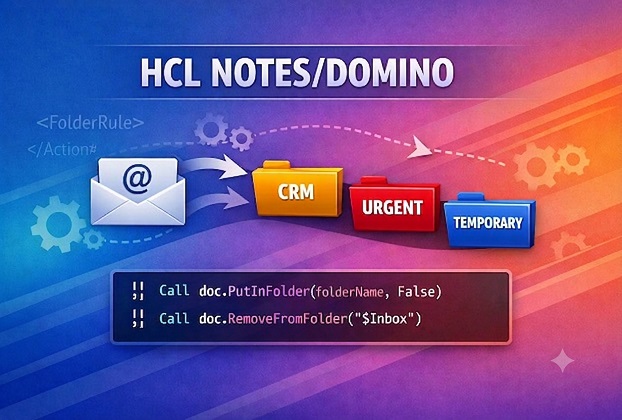
The Problem: Drowning in My Own Automation
As an IT Pro, I run a lot of automation. Scheduled agents, background jobs, sync processes — code I’ve written over the years that quietly does its job across various databases. Almost all of it has one habit in common: when something happens (good or bad), it emails me. Status updates, anomaly flags, sync confirmations, error alerts — they all land in my HCL Notes Inbox, several times a day, some days more than a few dozen times. Remember that not every small or big point is set to trigger email, or else I’ll get snowed under so many emails everyday.
I don’t mind that. I want to know what my automation is doing. What I minded was the twenty minutes every morning, and a few in the middle of the day I spent doing something automation should have handled in the first place: manually sorting that flood of system-generated mail into the right folders so my Inbox stayed usable and I could actually spot the emails that needed a human decision. Later, I check the individual emails calmly from their respective folders. Most of the auto-generated emails do not require to be attended forthwith, they’re just flags to indicate that things are going as expected … or some unwanted thing is happening more frequently than expected — sort of things.
The First Attempt: Notes’ Built-in Rules
The obvious starting point was Notes’ own Tools → Rules feature. It works, and for a handful of emails it’s genuinely fine — create a rule, match on subject or sender, tell it which folder to move matching mail into, done.
The trouble started at scale. I had created several folders — CRM, Temporary, Urgent and a few others — each with its own rule, because Rules in Notes don’t let you branch cleanly into “if this, folder A; if that, folder B” in one pass the way I badly needed. So on a busy morning with thirty or forty new emails, and may be more, sitting in the Inbox, I’d:
- Select all unread emails, open the Rules dialog, run it.
- Go back to the Inbox, select the rest of the unread emails, open the dialog again, run it.
- Repeat for every folder I had until I see none is left or only the genuine emails in my inbox.
Each pass meant a few clicks through dialog windows just to move mail that, in principle, my own automation should have known where to put. It worked, but it didn’t feel like automation — it felt like I’d built a second manual job on top of the first one.
The Idea: What If One Click Did Everything?
At some point, sorting through Rule 3 for the fourth time that week, the obvious question showed up: why am I the one deciding which rule to run, one at a time, when a single agent might have a potential to evaluate every unread email against every rule in one pass, move it and help me organize things more efficiently?
That’s really the heart of this story. Not a huge architectural leap — just the decision to stop treating “move email to folder” as a series of manual dialog interactions and start treating it as a single, well-defined problem: given a set of criteria and a set of documents, apply the criteria and move the ones that match. That’s exactly what code is good at.
Building the Mail Organizer
I wanted the rules themselves to be easy to update without touching code every time — new automation gets added, wording changes, new folders get created. So I split the solution into three pieces: a config document holding the rules as XML, an action button to edit that config from the Inbox, and an agent that reads the XML and does the actual sorting.
The Config Document: Rules as XML, Not Hardcoded Logic
I created a MailOrganizerConfig form and a single document holding one item, RulesXML, structured like this:
<MailOrganizerRules>
   <FolderRule name="CRM" matchType="Subject">
     <Criteria>BCD CRM - Update Construction Status - Info</Criteria>
     <Criteria>normal ndc application:</Criteria>
     <Criteria>allotment case approved</Criteria>
     <!-- more subject criteria -->
   </FolderRule>
   <FolderRule name="Temporary" matchType="Subject">
     <Criteria>SqlDb_Synch agent.</Criteria>
     <Criteria>BlockStatusMontior</Criteria>
     <!-- more subject criteria -->
   </FolderRule>
   <FolderRule name="Temporary" matchType="Body">
     <Criteria>Construction status (from BCD) is set to: Com but It is not updated in CRM from Design Wing.</Criteria>
     <Criteria>Dear Customer, Your request For Possession against</Criteria>
   </FolderRule>
</MailOrganizerRules>
Each FolderRule node names a target folder and declares whether it matches against the Subject or the Body. Each Criteria child is a plain-text fragment — if it shows up (case-insensitively) in the field being checked, that folder wins. I keep adding entries to this XML as new automation sources come online. No code changes required, just an edit to one document, and here we go!
A hidden view, also called MailOrganizerConfig, exists purely as a lookup mechanism so the agent (and the button) can fetch that single document without a full-text search.
The Action Button: Editing the Config Without Leaving the Inbox
Since I update this XML fairly often, I didn’t want to go hunting for the document through Notes’ database navigator every time. I added a “Mail Org. Config” action under More action in the Inbox view. Just navigate to Folders -> ($Inbox) and open it,but very carefully. Created my action button say “Mail Org. Config”, (you can choose your own) under More Action button. Again you can choose any root level action button you want. Copy/pasted this little code in it’s source window :
Sub Click(Source As Button)
    Dim ws As New NotesUIWorkspace
    Dim db As NotesDatabase
    Dim view As NotesView
    Dim doc As NotesDocument

    Set db = ws.CurrentDatabase.Database
    Set view = db.GetView("MailOrganizerConfig")

    If Not view Is Nothing Then
        Set doc = view.GetFirstDocument()
    End If

    If doc Is Nothing Then
        ' First-time creation if it doesn't exist yet
        Set doc = New NotesDocument(db)
        doc.Form = "MailOrganizerConfig"
        Call doc.Save(True, False)
    End If

    Call ws.EditDocument(True, doc)
End Sub
One click, and I’m editing my rules document directly — with a fallback that creates it automatically the first time it’s needed. Small thing, but it removed all friction from maintaining the rules over time.
The Agent: Reading Rules, Matching Mail, Moving Documents
This is where the real payoff lives — OrganizeEmails, an agent that runs against unread (or otherwise selected) documents in the Inbox.
It starts by loading the rules XML from the config document and parsing it with Notes’ DOM parser:
xmlText = GetRulesXML(db)
If xmlText = "" Then
    Print "Mail Organizer: RulesXML config document not found or empty. Aborting."
    Exit Sub
End If

Set domParser = session.CreateDOMParser(xmlText)
Call domParser.Process
Set rootEl = domParser.Document.DocumentElement
Then, for every unprocessed document, it first checks the Subject against every FolderRule marked matchType="Subject". If nothing matches there, it falls through to checking the Body — and this is the part that took some care, because Notes mail bodies aren’t always the same item type. Some are Rich Text, some are plain Text, and a growing number arrive as MIME entities (especially mail routed in from external or automated sources):
Select Case itm.Type
Case RICHTEXT
    Set rt = itm
    bodyText = rt.GetUnformattedText
Case Text
    bodyText = itm.Values(0)
Case Else   ' MIME entity
    Set mimeEntity = doc.GetMIMEEntity("Body")
    If Not (mimeEntity Is Nothing) Then
        Set child = mimeEntity.GetFirstChildEntity
        While Not child Is Nothing
            Set childStream = session.CreateStream
            Call child.GetContentAsText(childStream)
            childStream.Position = 0
            bodyText = childStream.ReadText()
            Set child = child.GetNextSibling
        Wend
    End If
End Select
I’ll be honest — getting the MIME branch to behave correctly took some debugging of its own (a story for another post: it turned out session.ConvertMime needed to be set before any document access, not after — one of those “obvious in hindsight” HCL Notes lessons). But once that was sorted, the matching logic itself is refreshingly simple: walk every FolderRule of the relevant type, walk every Criteria inside it, and on the first hit, move the document and stop looking:
If InStr(searchText, critText) > 0 Then
    Call doc.PutInFolder(folderName, False)
    Call doc.RemoveFromFolder("($Inbox)")
    ApplyFolderRules = True
    Exit Function   ' first match wins
End If
First match wins, by design — it keeps the rule set predictable and avoids double-filing the same email into two folders.
Mail Org. Config action button code:
Sub Click(Source As Button)
	Dim ws As New NotesUIWorkspace
	Dim db As NotesDatabase
	Dim view As NotesView
	Dim doc As NotesDocument

	Set db = ws.CurrentDatabase.Database
	Set view = db.GetView("MailOrganizerConfig")

	If Not view Is Nothing Then
		Set doc = view.GetFirstDocument()
	End If

	If doc Is Nothing Then
        ' First-time creation if it doesn't exist yet
		Set doc = New NotesDocument(db)
		doc.Form = "MailOrganizerConfig"
		Call doc.Save(True, False)
	End If

	Call ws.EditDocument(True, doc)
End Sub
… and here’s the fully functional agent code (OrganizeEmails) for you:
Option Public
Option Declare


Sub Initialize

	On Error GoTo ErrHandler

	Dim session As New NotesSession
	Dim db As NotesDatabase
	Dim dc As NotesDocumentCollection
	Dim doc As NotesDocument
	Dim subj As String
	Dim bodyText As String
	Dim MailDocHasBeenTreated As Boolean
	Dim itm As NotesItem
	Dim rt As NotesRichTextItem
	Dim DebugText As String

	Dim xmlText As String
	Dim domParser As NotesDOMParser
	Dim rootEl As NotesDOMElementNode


	Set db = session.CurrentDatabase
	Set dc = db.UnprocessedDocuments


	If dc.Count = 0 Then
		MessageBox "No email documents selected.", 48, "Info"
		Exit Sub
	End If


	'---- Load rules XML from the config document (no filesystem, replicates with db) ----
	xmlText = GetRulesXML(db)
	If xmlText = "" Then
		Print "Mail Organizer: RulesXML config document not found or empty. Aborting."
		Exit Sub
	End If


	Set domParser = session.CreateDOMParser(xmlText)
	Call domParser.Process
	Set rootEl = domParser.Document.DocumentElement

	Set doc = dc.GetFirstDocument

	While Not doc Is Nothing

		MailDocHasBeenTreated = False
		subj = LCase(doc.GetItemValue("Subject")(0))

		'print subj

		'---- Subject-based rules, driven entirely by XML ----
		MailDocHasBeenTreated = ApplyFolderRules(rootEl, "Subject", subj, doc)


		' ---- Body/MIME-based rules, only if no subject rule matched ----
		If Not MailDocHasBeenTreated Then

			bodyText = ""
			Set itm = doc.GetFirstItem("Body")

			Select Case itm.Type

			Case RICHTEXT
				Set rt = itm
				bodyText = rt.GetUnformattedText

			Case Text
				bodyText = itm.Values(0)

			Case Else   ' MIME entity
				Dim mimeEntity As NotesMIMEEntity
				Set mimeEntity = doc.GetMIMEEntity("Body")

				If Not (mimeEntity Is Nothing) Then
					Dim child As NotesMIMEEntity
					Dim childStream As NotesStream
					Set child = mimeEntity.GetFirstChildEntity
					While Not child Is Nothing
						Set childStream = session.CreateStream
						Call child.GetContentAsText(childStream)
						childStream.Position = 0
						bodyText = childStream.ReadText()
						Set child = child.GetNextSibling
					Wend
				End If

			End Select

			MailDocHasBeenTreated = ApplyFolderRules(rootEl, "Body", LCase(bodyText), doc)

		End If

		Set doc = dc.GetNextDocument(doc)
	Wend


	Exit Sub

ErrHandler:
	MsgBox "Error in Generate Surcharge Report - FourMnthGracePeriodAdjAfterPolicy2() at line no. "+Cstr(Erl())+" description: "+Error$

	DebugText = "Error while executing EmailOrganizer Agent on the Inbox at line no. "+Cstr(Erl())+" description: "+Error$
	Call SendEmailExt("Babur Mansoor/IT/Org/CountryName@NotesDomain", "Surcharge Statement - Error.",  DebugText)
	Exit Sub


End Sub
'==============================================================================
' Walks all <FolderRule> nodes of the given matchType, checks each
' <Criteria> value against searchText, and moves+returns True on first hit.
' matchTypeFilter: "Subject" or "Body"
'==============================================================================
Function ApplyFolderRules(rootEl As NotesDOMElementNode, matchTypeFilter As String, searchText As String, doc As NotesDocument) As Boolean

	Dim folderRules As NotesDOMNodeList
	Dim fRuleNode As NotesDOMElementNode
	Dim critList As NotesDOMNodeList
	Dim folderName As String
	Dim critText As String
	Dim i As Integer, j As Integer

	ApplyFolderRules = False

	If rootEl Is Nothing Then Exit Function

	Set folderRules = rootEl.GetElementsByTagName("FolderRule")
	If folderRules.NumberOfEntries = 0 Then Exit Function

	For i = 1 To folderRules.NumberOfEntries

		Set fRuleNode = folderRules.GetItem(i)

		If fRuleNode.GetAttribute("matchType") = matchTypeFilter Then

			folderName = fRuleNode.GetAttribute("name")
			Set critList = fRuleNode.GetElementsByTagName("Criteria")

			For j = 1 To critList.NumberOfEntries

				If Not (critList.GetItem(j).FirstChild Is Nothing) Then
					critText = LCase(Trim$(critList.GetItem(j).FirstChild.NodeValue))

					If critText <> "" Then
						If InStr(searchText, critText) > 0 Then
							Call doc.PutInFolder(folderName, False)
							Call doc.RemoveFromFolder("($Inbox)")
							ApplyFolderRules = True
							Exit Function   ' first match wins
						End If
					End If
				End If

			Next j

		End If

	Next i

End Function

'==============================================================================
' Reads the RulesXML text item from the single MailOrganizerConfig document.
'==============================================================================
Function GetRulesXML(db As NotesDatabase) As String

	Dim view As NotesView
	Dim configDoc As NotesDocument


	GetRulesXML = ""

	Set view = db.GetView("MailOrganizerConfig")


	If view Is Nothing Then Exit Function

	Set configDoc = view.GetFirstDocument

	If configDoc Is Nothing Then Exit Function

	If configDoc.HasItem("RulesXML") Then
		GetRulesXML = configDoc.GetItemValue("RulesXML")(0)
		Exit function
	End If


End Function
Function SendEmailExt(MsgSendTo As String, MsgSubject As String, MsgText As String) As Boolean

	Dim body As NotesMIMEEntity
	Dim mh As NotesMIMEHeader
	Dim mc As NotesMIMEEntity
	Dim stream As NotesStream
	Dim session As New NotesSession
	Dim mailDoc As NotesDocument
	Dim db As NotesDatabase

	Set db = session.CurrentDatabase
	Set mailDoc = New NotesDocument(db)

	session.convertMIME = False

	MailDoc.Form="Memo"
	MailDoc.Subject= MsgSubject


	'Create the MIME headers
	Set body = MailDoc.CreateMIMEEntity
	Set mh = body.CreateHeader({MIME-Version})
	Call mh.SetHeaderVal("1.0")
	Set mh = body.CreateHeader("Content-Type")
	Call mh.SetHeaderValAndParams( {multipart/alternative;boundary="=NextPart_="} )

	Set mc = body.createChildEntity()
	Set stream = session.createStream()
	Call stream.WriteText(MsgText)
	Call mc.setContentFromText(stream, {text/html;charset="iso-8859-1"}, ENC_NONE)

	Call stream.close()

	MailDoc.SendTo = MsgSendTo
	Call MailDoc.Send(False)

	SendEmailExt = True
End Function
The Result
I run this agent from the same “More” action menu form within Inbox, usually once or twice a day, sometimes more on a heavy day. What used to be several rounds of select-emails-then-run-a-dialog is now one click away, regardless of how many folders involved, or how many emails are sitting in the Inbox. It just works through the whole set in a single pass and files everything correctly. There’s a particular kind of satisfaction in clicking one button and watching thirty emails quietly sort themselves — it’s a small thing, but it’s the kind of small thing that adds up to real time saved, every single day.
Here’s the final code for you to copy and paste on their appropriate locations.
Rules vs. a Custom Agent: When Each One Actually Makes Sense
I don’t think this makes Notes’ built-in Rules feature obsolete — it’s still the right tool for a lot of situations. Here’s how I’d frame the choice:
- Use built-in Rules when you have a small, stable number of conditions and don’t need to branch across many folders in a single pass — the built-in dialog-driven setup is fast for that.
- Build a custom agent when your criteria change often, when you’re filing into many different folders based on various conditions, or when your matching logic needs anything Rules can’t express — like falling through from Subject to Body, or handling MIME content specifically.
- Build a custom agent when you want the rule definitions editable without touching code — keeping them in a config document (or XML, as I did) means anyone comfortable editing a Notes document can maintain the rules, no LotusScript required. Nevertheless you have to be a bit careful while editing it.
- Custom code wins when you want the option to extend behavior later — logging, notifications, conditional actions beyond a simple folder move — none of which Rules can do out of the box.
Could This Run on a Schedule?
Yes — an agent like this can absolutely be set to run on a schedule rather than triggered manually, since scheduled agents are a standard part of the Domino agent framework. I’ve deliberately kept mine manual, though. I like glancing through my Inbox before I run it, partly out of habit and partly because I want a chance to catch anything unusual before it gets filed away automatically. If your volume is high enough, or your rules are mature and trustworthy enough, scheduling it to run every fifteen or thirty minutes is a very reasonable next step — just make sure your error-handling routine (mine emails me directly on failure) is solid before you let it run unattended.
Where This Leaves Me
This started as a mildly annoying morning chore and turned into one of those small pieces of internal tooling that quietly pays for itself every day. The pattern itself is nothing exotic — config-driven rules, a DOM parser, a loop over unprocessed documents — but that’s sort of the point. A lot of the best Notes/Domino automation isn’t clever for its own sake; it’s just the removal of friction that had no business being there in the first place.
If you’re still working through Tools → Rules one folder at a time on a busy Inbox morning, it might be worth asking yourself the same question I did: is this actually a manual task, or is it a coding problem wearing a manual task’s clothes?
Frequently Asked Questions
Can this agent be scheduled to run automatically instead of being triggered manually?
Yes. Scheduled agents are a standard capability in HCL Domino, so this same logic can run periodically without any user action. It’s kept manual here by preference, not by technical limitation.
What’s the real advantage of a custom agent over Notes’ built-in Tools → Rules feature?
A custom agent can evaluate many folder conditions in a single pass, fall through from Subject matching to Body matching, and handle MIME-based email bodies — none of which the built-in Rules dialog supports directly.
Why does the agent check both Subject and Body instead of just one?
Some automated emails carry their identifying information in the subject line, while others only have it in the message body. Checking Subject first and falling through to Body only when needed keeps the matching both accurate and efficient.
Can this same pattern be used for more than just moving emails into folders?
Yes. Since the folder-moving action is just one line inside the matching loop, the same rule-matching structure could trigger other actions — flagging, forwarding, logging, or even kicking off other agents — with minimal changes.