If you’ve been running HCL Notes and Domino for any length of time, you already know the platform has a habit of quietly sitting on years — sometimes decades — of company knowledge. Support tickets, policy documents, contracts, project notes, client history. It’s all in there. The problem has always been finding the right piece of it at the right moment.
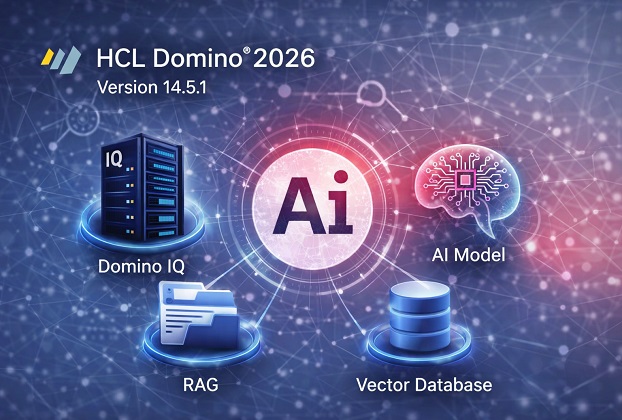
HCL Domino 2026 (technically version 14.5.1) takes a real swing at that problem. It adds Retrieval-Augmented Generation, or RAG, to Domino IQ — the AI engine that HCL built directly into the Domino server itself. In plain terms: your Domino databases can now answer questions in natural language, using their own content, without any of that data leaving your own servers.
This guide walks through what it actually is, what you need before you start, and how to set it up step by step — including a few rough edges that HCL’s own documentation doesn’t spell out clearly.
What Is Domino IQ, Exactly?
Domino IQ is HCL’s built-in AI feature for Domino servers. Instead of connecting to an outside AI service, it runs its own AI engine right on your Domino server, so your data never has to leave your infrastructure. It was first introduced in Domino 14.5, before RAG existed. At its core, it added an AI inference engine into the Domino server process itself. An inference engine is simply the software that takes a trained AI model and actually runs it — feeding it a question and generating an answer. Think of it as the “engine” that powers the AI, as opposed to the model itself, which is more like the fuel. Once configured, the Domino server can send questions to this engine and get answers back, using two new programming classes: NotesLLMRequest and NotesLLMResponse.
Out of the box, Domino IQ powers a couple of end-user features in the Notes mail client — an AI-generated “Summarize” button and a “Reply with AI” option. But the more interesting part, especially if you write LotusScript or work with Domino applications, is that developers can call the same AI engine directly from their own code.
What Is RAG, and Why Should You Care?
Here’s the part that makes 14.5.1 genuinely new. Before this release, Domino IQ could only answer questions using whatever the underlying AI model already “knew” from its training — which, obviously, doesn’t include anything about your company’s internal Domino databases.
RAG (Retrieval-Augmented Generation) is a technique that lets an AI model answer questions using information it was never trained on. Before generating a reply, the system first searches your own data for relevant material, then hands that material to the AI as extra context. This keeps answers grounded in your actual records instead of the AI guessing. It fixes that gap. In Domino 14.5.1, you can now designate a Domino database as a RAG source — meaning specific fields in that database get converted into a format the AI can search through semantically (by meaning, not just keyword matching).
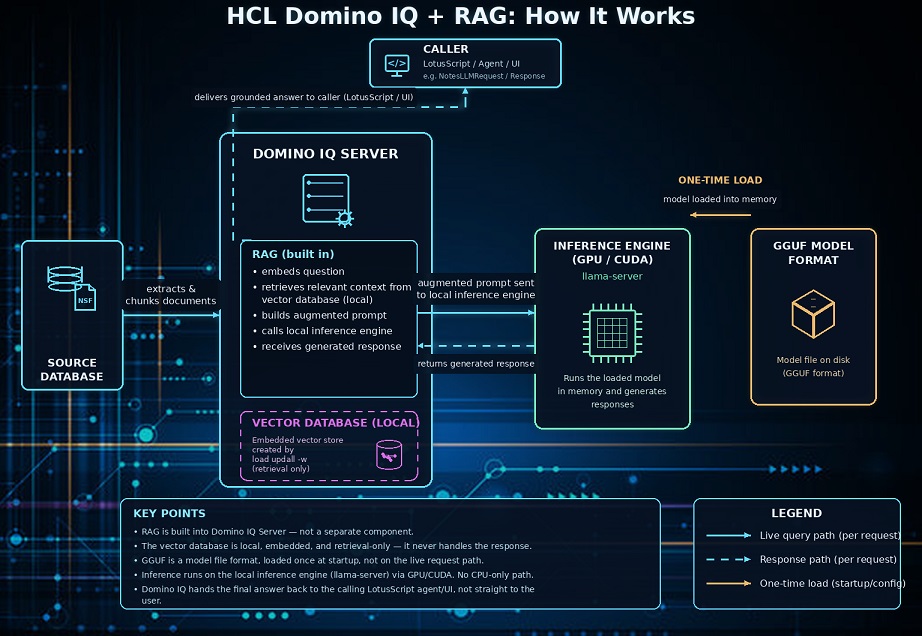
Here’s the general flow, sometimes called the RAG pipeline [The RAG pipeline is just the sequence of steps a RAG system follows: pull in your data, convert it into a searchable format, search it when a question comes in, then feed the results to the AI model to write the final answer.]:
- Documents from your chosen Domino database get processed into small chunks.
- Each chunk is converted into a list of numbers (a mathematical fingerprint of its meaning) called an embedding, and stored in a vector database. A vector database is a special kind of database built to store these numerical “fingerprints” of text, and to quickly find which ones are most similar to a new question. It’s the technology that makes semantic search possible.
- When someone asks a question through a configured AI command, that question is also converted into an embedding and compared against the vector database to find the closest matches.
- Those matches are pulled from the original documents and inserted into the prompt sent to the LLM [LLM stands for Large Language Model — the actual AI model (like Llama or similar) that reads the prompt and generates a human-sounding answer. It’s the “brain” behind the whole operation.], giving it real context to work with instead of a blank guess.
The practical result: someone in Legal could ask “What’s our standard indemnification clause for vendor contracts?” and get an answer pulled from actual contracts sitting in a Domino database, phrased in plain language, without anyone manually searching through years of files.
HCL’s own materials point to some fairly serious use cases here — analyzing large volumes of supplier contracts against new regulations, or surfacing relevant past project history when responding to a tender. For smaller shops, it’s just as useful for simpler things: an internal FAQ database, a knowledge base of past support tickets, or a policy manual that people actually get honest answers from instead of ignoring.
Before You Start: The Hardware Reality Check
This is the section a lot of setup guides skip past too quickly, and it matters more than it seems.
Domino IQ’s Local mode — which is currently the only mode that supports RAG — needs real hardware behind it:
- A minimum of 4 CPUs and 8 GB of RAM on the server itself.
- An NVIDIA GPU with at least 8 GB of memory is strongly recommended, with a compute capability of 5.2 or higher (8.0 or higher if you’re running this for real production use, not just testing).
- Only 64-bit Windows and Linux Domino servers are supported for the installation — there’s no macOS or IBM i option here.
That GPU requirement isn’t optional for RAG specifically. Early beta versions of Domino IQ could technically limp along on CPU alone, but that’s no longer the case — Local mode, and therefore the whole RAG pipeline, needs a CUDA [CUDA is NVIDIA’s software toolkit that lets programs run heavy calculations on an NVIDIA graphics card instead of the regular processor. AI models run dramatically faster on a GPU with CUDA than on a CPU alone, which is why it’s required here.]-capable NVIDIA card to run at any usable speed.
Worth knowing before you plan a rollout: this GPU requirement is currently one of the more actively discussed limitations in the HCL Domino community. There’s an open item on HCL’s own ideas portal arguing that the NVIDIA/CUDA requirement locks out other AI hardware types that are becoming more common. If your organization’s Domino servers weren’t provisioned with GPUs in mind, this is the point where you may need to loop in whoever manages your server hardware, well before you get to the software steps below.
Step 1: Install Domino IQ on the Server
Domino IQ isn’t bundled automatically into a standard Domino install — it’s a separate download.
- Download the llama.zip package from the My HCLSoftware Portal (it contains both the AI inference server binaries and the required NVIDIA components).
- Shut down the Domino server.
- Unzip the contents into the Domino program directory.
- On Linux, you’ll additionally need to set correct file ownership on the extracted binaries (chown root:root on the llama-server and related library files).
- Start the Domino server back up once the configuration steps below are complete.
Step 2: Turn On Domino IQ at the Directory Level
Domino IQ is enabled centrally, through the Domino Directory:
- Open your Domino Directory database and edit the Directory Profile.
- On the Domino IQ tab, choose which server (or group of servers) will run Domino IQ.
- Pick one server to act as the Administration server for Domino IQ. This is the server where you’ll make all future configuration changes — everything else replicates from it, which avoids conflicts.
- Replicate the Domino Directory out to all the servers you selected.
- Restart the Domino server on each Domino IQ server, starting with the administration server first.
On first startup, Domino automatically creates a configuration database called dominoiq.nsf [dominoiq.nsf is the configuration database that controls Domino IQ. It stores which AI model each server uses, connection settings, and the “commands” (predefined prompts) that your applications can call. Think of it as the control panel for the whole feature.] on the administration server, which then replicates out to the other Domino IQ servers. Each server also gets a new llm_models folder under its data directory, ready to hold the actual AI model file.
Step 3: Download and Place an AI Model
Domino IQ needs an actual AI model file to run. These models must be in GGUF binary format [GGUF is a file format used to package AI language models so they can run efficiently outside of specialized cloud data centers — including on a regular server. If a model isn’t already in GGUF format, it generally needs to be converted, which is extra work best avoided when you’re just getting started.].
For a first test, pick something modest — a compact 3-billion-parameter model such as Llama-3.2-3B-Instruct is a reasonable, low-risk starting point. Larger models generally give better answers but need considerably more memory and a stronger GPU to run comfortably. Download the .gguf file (Hugging Face is the most common source) and place it into the llm_models folder created in Step 2.
Step 4: Create the Configuration Document
Back in dominoiq.nsf, using the Domino Administrator client:
- Open the Configurations view and click Add Configuration.
- Choose Local as the AI endpoint (this is required for RAG).
- Select the Domino server this configuration applies to.
- On the Basics tab, specify the model file name you placed in Step 3.
- Set Status to Enabled.
- Choose a port number for the local AI inference server.
- On the Advanced tab, you can set how many CPUs to use and how much of the model to offload to the GPU — useful for tuning performance later, but the defaults are fine to start.
Save the document and restart the Domino server (or use the console commands in the “Managing It” section below) to load the model.
(Side note: if you’d rather not run the AI model locally at all, a Remote mode also exists, letting Domino IQ connect to an externally hosted model instead — useful for testing without GPU hardware, but not compatible with RAG in this release.)
Step 5: Enable RAG on a Specific Database
This is the part unique to 14.5.1. Once base Domino IQ is running, turning on RAG for a chosen database involves a few extra steps:
Update the template
Both dominoiq.nsf on the administration server and every Domino IQ server must be refreshed with the new dominoiq.ntf template that ships with 14.5.1. Without this, the RAG options simply won’t appear.
Prepare the source database
- Full-text indexing enabled.
- Attachment indexing enabled, if you want attachments to be searchable too.
- A replica present on the Domino IQ server(s) that will handle the RAG requests.
Vectorize the content
From the Domino Administrator console, run:
load updall -w <your-database-name>
This is the vectorization [Vectorization is the process of converting text into those numerical “fingerprint” embeddings mentioned earlier, so the content can be searched by meaning rather than exact wording. It’s essentially the step that makes your existing documents “readable” to the AI’s search system.] step — it reads through the database and builds the entries in the local vector database. Depending on how much content is in there, this can take a few minutes, so don’t be alarmed if it’s not instant.
Configure the command
In dominoiq.nsf, open (or create) an LLM Command document and add the RAG source fields as a comma-separated list. You can also adjust the system prompt here — including what the AI should say when nothing relevant is found in your data, which is worth setting deliberately rather than leaving default.
Respect existing security
One detail worth knowing: RAG doesn’t bypass your existing database security. Requests are still evaluated against the source database’s ACL and Readers fields, using the identity of whoever is actually asking the question. A RAG-enabled HR database, for example, won’t suddenly expose everyone’s records to everyone who asks.
Step 6: Test It From LotusScript
Once your command is configured, calling it from code is refreshingly simple:
Dim session As New NotesSession
Dim llmreq As NotesLLMRequest
Dim llmresp As NotesLLMResponse

Set llmreq = session.Createllmrequest()
Set llmresp = llmreq.Completion(serverName, commandName, inputText)

Msgbox llmresp.Content
commandName refers to the command you configured in dominoiq.nsf in Step 5 — that’s where the prompt, model choice, and (now) the RAG source fields all come together. Your LotusScript code stays short; nearly all of the actual configuration lives in the config database, not in code. This makes it a genuinely low-effort feature to bolt onto an existing agent, button, or web form once the server-side setup is done.
Managing and Troubleshooting Domino IQ
A handful of server console commands are worth keeping on hand once things are running:
- dominoiq start — relaunches the Domino IQ process if it has stopped entirely due to an error.
- tell dominoiq unload — stops the AI engine cleanly, useful when you want to swap in a different model.
- tell dominoiq resume — restarts the engine after a configuration fix, without needing a full server restart.
If a RAG-enabled command isn’t returning useful answers, the most common causes are: the vectorization step (load updall -w) hasn’t been re-run since the source database was updated, the database wasn’t fully replicated to the Domino IQ server handling the request, or full-text/attachment indexing wasn’t enabled before the vectorization ran.
Known Limitations to Plan Around
Before you promise this to your business users, a few current constraints are worth setting expectations around:
- GPU dependency. As covered above, RAG currently requires NVIDIA GPU hardware — there’s no supported CPU-only path for this specific feature yet, and this is an actively raised concern in the HCL community.
- One model per server. Each Domino IQ server can only run a single loaded model at a time. Supporting multiple use cases with different models means either switching models manually or spreading them across multiple Domino IQ servers.
- Local mode only. RAG doesn’t currently work with Remote mode configurations — it needs the model running locally on the same server handling the RAG source content.
- Freshness isn’t automatic. New or updated documents in your source database won’t be searchable until the vectorization step runs again. If your data changes often, plan for a scheduled re-index rather than a one-time setup.
Quick Recap Checklist
- Confirm GPU hardware (NVIDIA, CUDA-capable) is available on the target server
- Download and install the Domino IQ package (llama.zip)
- Enable Domino IQ via the Directory Profile and designate an administration server
- Download a GGUF model and place it in the llm_models folder
- Create the Local mode Configuration document in dominoiq.nsf
- Update dominoiq.nsf/.ntf to the 14.5.1 template
- Enable full-text (and attachment) indexing on the source database
- Run load updall -w to vectorize the content
- Configure the RAG fields on an LLM Command document
- Test with a simple LotusScript call
Putting It All Together
Frequently Asked Questions
Does Domino IQ with RAG send any of my data outside my network?
No — in Local mode, the entire pipeline (the AI model, the vector database, and the search process) runs on your own Domino server. Nothing is sent to an external cloud service.
Do I need a GPU to try RAG, or can I test it on CPU first?
Currently, RAG requires Local mode, and Local mode requires an NVIDIA GPU with CUDA support. There is no supported CPU-only path for RAG specifically, though base Domino IQ features (without RAG) can technically run without one in limited testing setups.
What file format does the AI model need to be in?
GGUF. This is the format the underlying inference engine (llama-server) expects. If you find a model in another format, you’ll need to convert it, which HCL’s own guidance suggests avoiding for a first test.
How often do I need to re-run the vectorization step?
Whenever the content in your source database changes meaningfully. There’s no automatic re-indexing on document save, so if your data updates daily, you’ll want a scheduled process (an agent, or a manual routine) to re-run load updall -w regularly.
Can RAG expose documents a user wouldn’t normally be able to see?
No. RAG queries still respect the source database’s existing ACL and Readers field restrictions, evaluated against the identity of the person asking the question.
Can one Domino IQ server support multiple different AI models for different use cases?
Not simultaneously. Each Domino IQ server currently runs a single loaded model at a time. If you need multiple models for different purposes, you’ll need multiple Domino IQ servers, or you’ll need to switch models manually using the tell dominoiq unload and tell dominoiq resume console commands.
Does this replace the need for full-text search in Domino?
Not exactly — full-text indexing is actually a prerequisite for RAG to work, since it’s part of what makes the source content usable for vectorization. RAG adds a natural-language layer on top, but it doesn’t replace the underlying indexing.
Is Domino IQ with RAG available on all supported Domino platforms?
No. The Domino IQ installation currently supports only 64-bit Windows and Linux servers. It is not available for IBM i or other platforms at this time.
You may also be interested in reading these articles about IBM/HCL Notes:
HCL Notes/Domino 12.0.2 Fix Pack 8: What’s New and Should You Upgrade
What the “Database Has Not Opened Yet” Error Actually Means in HCL Notes/Domino
Automating Document Migration in HCL Notes with DXL Export and Import
The Power Of IBM Notes Formula Language
IBM Notes Technique – Filter the Documents on the last 15 working days
HCL Notes Trick: Retrieve Details Rows From Embedded View
HCL Notes Trick – GetAllDocumentsBy2Keys
Get All Users From The ACL Of A Notes Database